When you code with AI, your quota shapes your day. Before asking it for a big refactor, or running several tasks at once, you want to know how much you have left. But the balance alone isn’t enough: 40% left with two hours to the reset is a very different situation from 40% left with twelve hours to go.
So I built CodaPace with the help of AI. It’s a macOS menu bar tool that puts “how much quota is left” next to “how long until it resets”. The menu bar ends up showing just two rings and two lines of text, but getting there meant working through a chain of problems about accounts, time, usage history and how far the data can be trusted. This post records those ideas and trade-offs.
The core idea: pace
CodaPace’s main number is pace:
pace = share of quota left − share of the period leftTwo cases with the same 40% of quota left (illustrative numbers):
| Case | Quota left | Time left | Pace | Meaning |
|---|---|---|---|---|
| A | 40% | 60% | −20 | 60% of the quota gone in 40% of the time: burning too fast |
| B | 40% | 20% | +20 | Only 60% gone in 80% of the time: room to spare |
Using it to guess whether you’ll make it to the reset assumes you keep the average speed of the period so far. It can’t predict what your next task will cost, or know whether you’ll stop working this afternoon. As a rough guide it’s enough: before starting a long task, you can see whether things are tight.
The pace idea, the two-ring indicator and some of the UI rules were inspired by the public design notes of CodexMeter. CodaPace adds real money amounts, support for several providers, saved accounts and local history.
The UI: one glance
In the menu bar, the outer ring shows quota left and the inner ring shows time left in the current period. The text next to it adds the percentage and the pace status; you can switch to a bar style instead. The time ring stays neutral most of the time and turns blue only when less than 20% of the period is left, meaning “the reset is close, so use what you have”.
Click it and the quota you’re watching sits at the top, with the others folded away. One account can be limited by a daily quota, a weekly quota and a short window at the same time, so the panel needs a clear order.
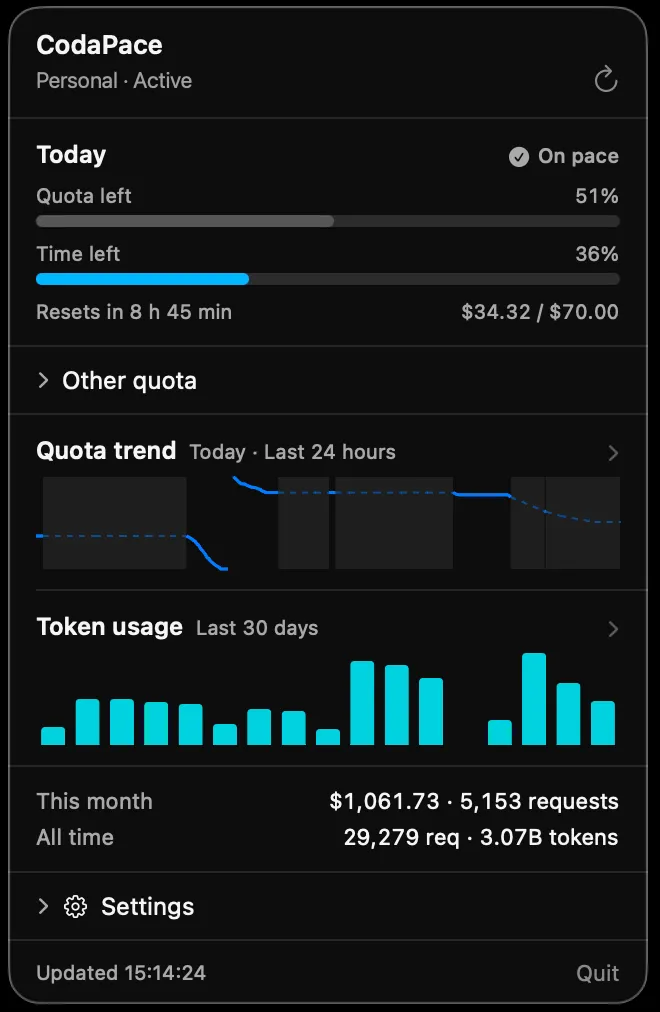
The menu bar panel.
There are also alerts for low quota and fast spending, and saved accounts you can name and switch between. The current version watches one account at a time.
Architecture: translate everything into one “quota bucket”
Once I started connecting different services, I found that “check the quota” varies far more than I expected:
- Some services use a read-only stats link; others need an API key that can actually call the model
- Some give the reset time directly; others only give the amount used and the limit
- A “daily quota” can reset at local midnight, at a fixed time of day, or on a rolling basis
Four services or service packages are supported so far:
| Service | What you provide | Main coverage |
|---|---|---|
| claude-relay-service | The usage stats page URL with apiId |
Total and daily quota, weekly Opus quota, rate-limit windows |
| tu-zi Coding | Service URL and API key | Daily, weekly and monthly quota; Coding product only |
| claude-code-hub | Site URL and API key | Limits set on the key and on the account |
| sub2api | Site URL and API key | Key limits or subscription plan quota |
In the code, each service’s authentication, requests and parsing live in its own adapter, which converts everything into a common “quota bucket”: a name, amount used, limit, unit, and a time window if there is one. The UI only knows about buckets and doesn’t care which API the data came from. That boundary makes adding a service a matter of “write one more adapter”, and lets the quota math and history logic be tested on their own.
The stack is deliberately simple: Swift, with SwiftUI and AppKit for the UI, Apple’s built-in Charts for graphs, and a local SQLite database for history. No third-party runtime dependencies. Pure logic (Core) is kept apart from the UI (App), and Core has 458 tests. The whole project builds with just the Command Line Tools, no Xcode needed. To keep it that way, the build script pins the macOS 26 SDK: newer SDKs turn SwiftUI’s @State into a macro, and the plugin that expands it only ships with Xcode.
The core stance: don’t invent data
The principle I care about most is keeping three things apart: what was observed, what was calculated, and what we simply don’t know. The project notes call it “don’t invent data”, and put it plainly: “Unknown, zero and unlimited are three different things. Squashing them into one value is lying.”
In the code, that turns into specific rules:
- A limit has three states. A limit, no limit at the moment, or unknown: a number, 0, or empty. Each bucket decides for itself, so one unknown bucket doesn’t drag the others down.
- The unit can be unknown too. tu-zi’s
daily_usedcarries no unit at all, while another field in the same response is clearly marked_usd. Showing the first one as$29.22would attach a currency out of thin air. So when a service doesn’t state a unit, CodaPace shows the bare number. - No trustworthy reset window, no pace verdict. It just shows usage.
- History uses the limit at the time of each sample. If you upgrade your plan from 100 to 200 today, yesterday’s percentages don’t change.
- Gaps aren’t filled in. No samples are taken while the app isn’t running. When two samples are more than 30 minutes apart, the chart marks a gap; the numbers on either side can’t tell you what happened in between.
- Tokens that can’t be placed in a day stay “unattributed”. If one sample is from last night and the next is from this morning, you know how much was used, but not on which day. It isn’t split by time.
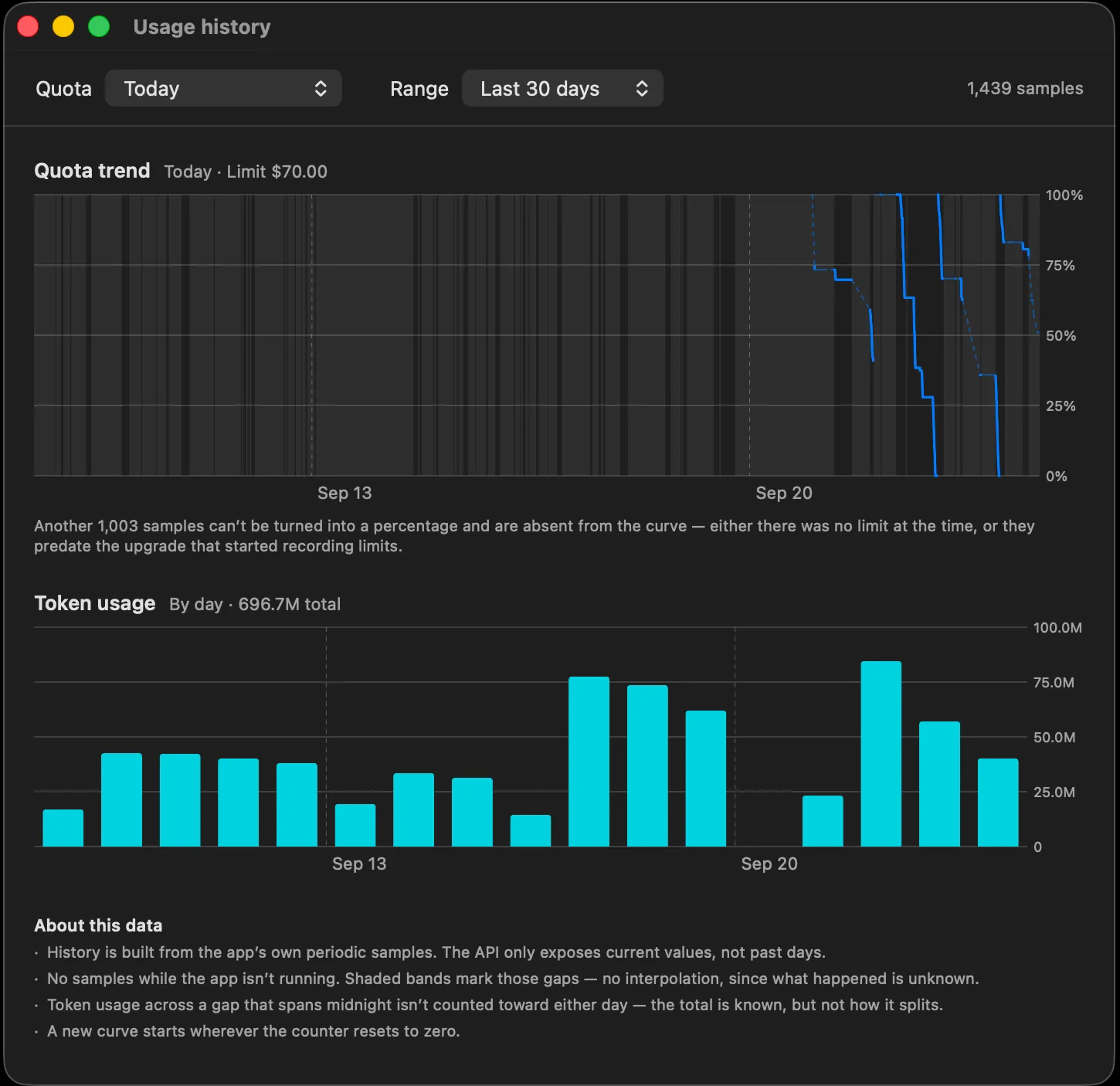
The history window. The “About this data” section at the bottom explains these rules to the user. Only services that report cumulative tokens get the usage bar chart.
Time is harder than it looks
“Resets at a certain time every day” is not the same as “every 24 hours”: when daylight saving time changes, a day can have 23 or 25 hours. Behind any countdown, you first have to answer “which kind of time does this service mean?” The project splits reset rules into several kinds:
| Rule | Notes |
|---|---|
| Given by the server | The service gave this one start and end; don’t extrapolate |
| Daily / weekly | Calendar-based, so it stays at the same local time across DST changes |
| Fixed length | Every N seconds from a starting point; counts absolute time, unaffected by DST |
| Subscription anniversary | A day of each month; months differ in length |
| Rolling window | Stats over a recent stretch, with no single reset moment, so pace doesn’t apply |
Each rule also records where it came from, ranked by trust: stated by the server > configured by the user or a verified protocol > observed in history > assumed by default > unknown. Only assumed and unknown times get labelled “estimated” in the UI.
“Observed in history” is a detail I like: within a day, daily cumulative usage only goes up, so when it drops, a reset has happened. The time of the sample after the drop becomes the reset time, and the gap between the two samples is the margin of error. If that gap is longer than 5 minutes, the observation is ignored, because the drop could have happened at any point in between.
Async and accounts: is the world the same when the answer comes back?
Refreshing the quota is a network request, so it takes time. Meanwhile, the user may have switched accounts. If the old account’s result arrives late and gets written into the current account’s panel and history, the data gets mixed up.
The rule in the project: refreshing, testing a connection and sending a notification all note down “who this is for” at the start, check again before committing the result, and throw the whole thing away if it doesn’t match. Nothing is shown, stored or notified. They also never go back to read global settings halfway through.
Accounts are identified in three different ways, too. History is keyed by “service + account”, preferences by “address + account”, and notification de-duplication uses the strictest combination. The service was added to the history key after a real collision: tu-zi identifies accounts with a short integer, while a self-hosted relay can use any string. When the two happened to match, the two accounts’ histories would merge silently, and once merged they couldn’t be separated.
Credentials are stored by purpose: addresses and display preferences in the app’s preferences, API keys in the macOS Keychain, and quota history only on your Mac. The app checks GitHub for new versions, but only points you to the release page; it never downloads or replaces itself.
Green tests aren’t enough
Before writing this, I ran a full review of version 2.2. All 458 tests, a full type check and a complete build passed, yet specially built scenarios still turned up 10 problems. The most serious one breaks “don’t invent data” itself:
In the newly added sub2api adapter, if the service leaves out the cumulative usage field once, that empty value is treated as 0. When the running total goes 1000 → missing → 1200, the history records 1200 instead of 200.
A few more examples:
- Switching quickly from account A to B and back to A lets an old request for A overwrite the new state when it returns. The “check before committing” rule above only compares the account, so it can’t tell an old request for A from a new one.
- An HTTP 200 response with unrelated content counts as “connected”.
- The test helper that compares decimals treats NaN as a pass, so some numeric bugs wouldn’t show up in the tests.
These issues are still unfixed in the 2.2 code this post describes.
That’s the most concrete lesson this project gave me. Writing down “don’t treat unknown as zero” is easy. Making every new API, every account switch and every history record follow it takes checking, case by case. Passing tests only prove the cases you already thought of. After adding a new service, you have to think again about which inputs and orders of events aren’t covered yet.
Download
If your service is on the supported list, you can download CodaPace-arm64.zip from GitHub Releases.
- Apple Silicon only, macOS 13 or later (not yet tested on a real macOS 13 machine)
- Ad-hoc signed and not notarized, so the first launch, and Keychain access after an update, may need extra approval. See the README for steps
- The official Anthropic API, Bedrock, Vertex AI, OpenRouter and others aren’t supported yet
CodaPace is open source under the MIT license: rigelmansid/CodaPace. For me, its real value is turning information I used to dig for on a website into two numbers I can see at a glance while I work: how much quota is left, and how long until it resets.